Set up Woo and DCAT registers in OpenRegister
Import the canonical Woo register and a DCAT open-data register into OpenRegister, entirely through the user interface.

The Dutch Open Government Act (Woo) asks government bodies to publish documents in set information categories. Open data is published as datasets in the DCAT-AP-NL standard. OpenRegister stores both. In this tutorial you import two registers, the Woo register and a DCAT register, using only the OpenRegister interface.
The follow-up tutorial on uploading files builds on this.
The canonical sources
Both registers are published as OpenRegister configuration files, hosted by Conduction at conduction.nl/oas. You do not edit them; you point OpenRegister at the URL and it does the rest.
| Register | Configuration URL |
|---|---|
| Woo | https://conduction.nl/oas/woo_register.json |
| DCAT | https://conduction.nl/oas/dcat_register.json |
The Woo file holds one register (woo) and ten schemas, one per Woo information category, each carrying the TOOI metadata. The DCAT file holds one register (dcat) with a Dataset schema aligned to DCAT-AP-NL.
Step 1: Import the Woo register
In OpenRegister, open Administration → Configurations in the left menu. Click Import Configuration, then choose the Import from URL tab. Paste the Woo configuration URL and leave the synchronisation settings on their defaults.
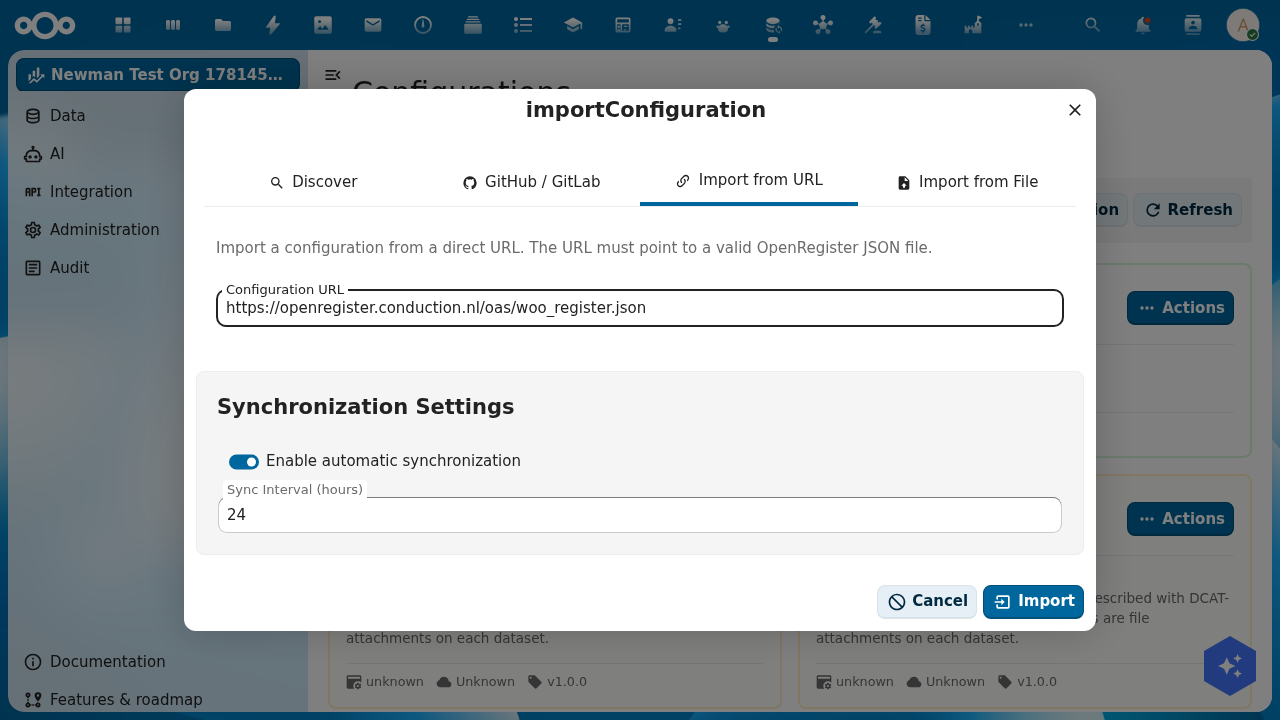
Click Import. OpenRegister fetches the file and, in one transaction, creates the register, its schemas, and any seed objects. A confirmation appears when it finishes.
Step 2: Import the DCAT register
Repeat Step 1 with the DCAT configuration URL. Open Import Configuration → Import from URL, paste https://conduction.nl/oas/dcat_register.json, and click Import.
You now have two registers. Open data and Woo publications live side by side, each in its own register.
Step 3: See what was created
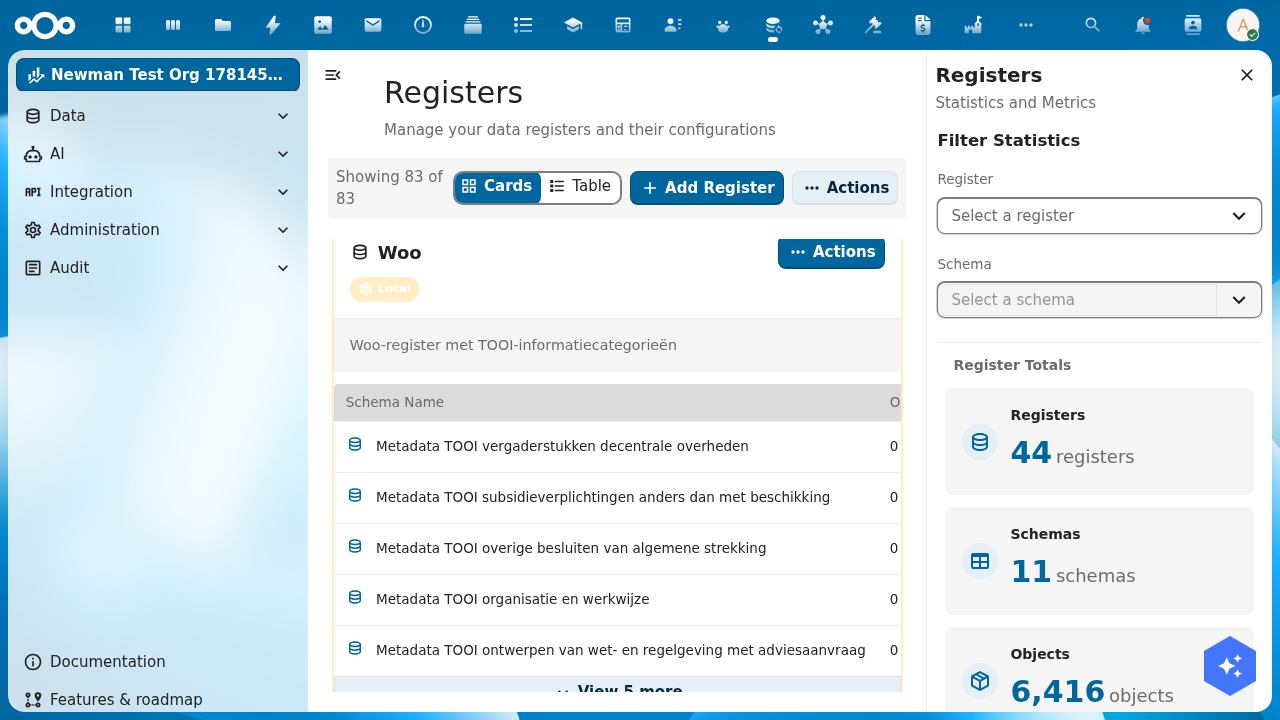
Open Data → Registers in the left menu. The Woo register shows its ten TOOI schemas, one per information category.
The DCAT register shows its single Dataset schema.
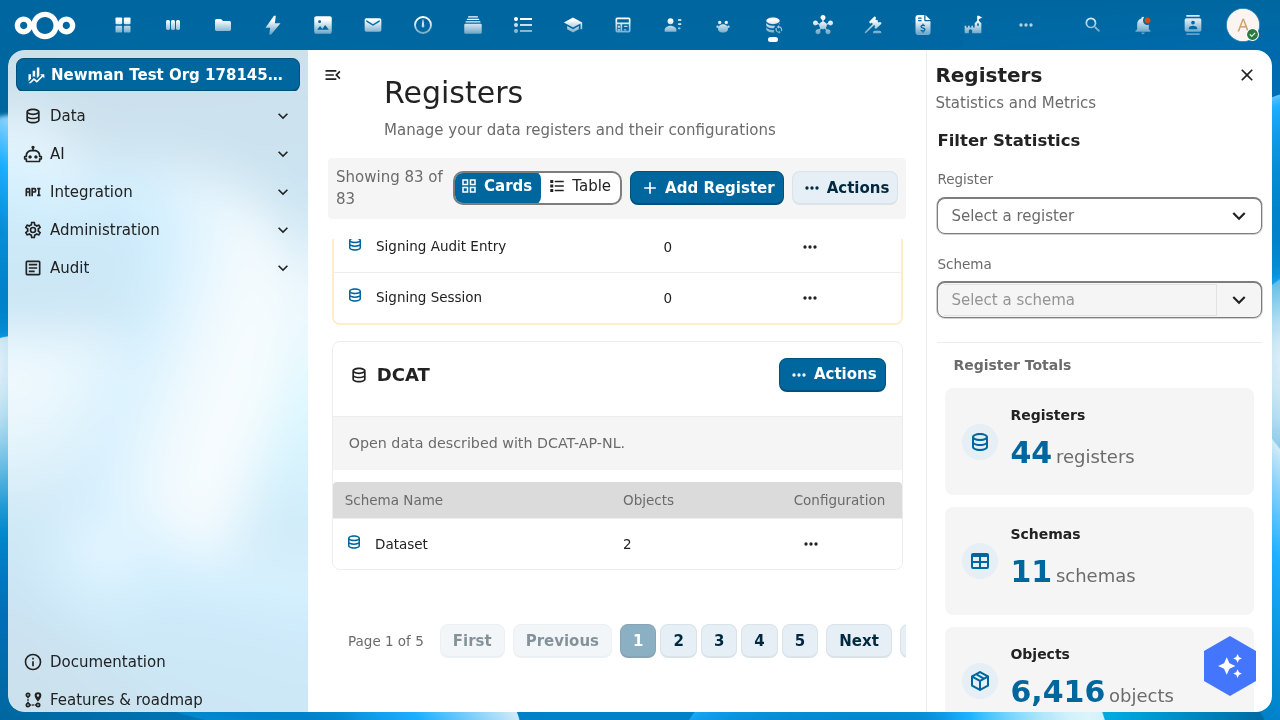
Each card has an Actions menu with View Details for a statistics panel: number of objects, files, logs, and schemas per register.
Step 4: Look at the schemas
The Woo TOOI schemas are metadata schemas. Each holds the same seven fields:
| Field | Type | Description |
|---|---|---|
tooiCategorieNaam | string (required) | Name of the category |
tooiCategorieId | string | TOOI id, for example c_fdaee95e |
tooiCategorieUri | string | Full TOOI URI |
tooiThemaNaam | string | Optional theme |
tooiThemaId | string | Optional theme id |
tooiThemaUri | string | Optional theme URI |
values | array | Free-form key-value pairs |
tooiCategorieId and tooiCategorieUri are fixed per schema. OpenRegister fills them automatically once you set tooiCategorieNaam.
The DCAT Dataset schema holds the DCAT-AP-NL dataset fields: title, description, tags (keywords), category (theme), license, publicatiedatum, landingPage, and publisher. A dataset's files become its distributions.
To inspect a schema, open Data → Schemas and click any schema to see its fields.
Step 5: Create your first object
Test a register with one object, without leaving the interface.
Open Data → Registers, open the Woo register, and pick the onderzoeksrapporten (Research reports) schema. Click Add object, set tooiCategorieNaam to onderzoeksrapporten, and save. OpenRegister fills in the TOOI id and URI for you and assigns the object a UUID.
Do the same in the DCAT register: open the Dataset schema, click Add object, and give it a title, a category, and a publicatiedatum. You now have one Woo publication and one open-data dataset.
Keep the UUIDs in mind. You need them in the next tutorial to attach files.
And now
You have:
- A Woo register with ten TOOI schemas
- A DCAT register with a Dataset schema
- One test publication and one test dataset
- Everything created through the interface, no command line
In the follow-up tutorial you attach files to a publication, from a few PDFs to large video files.
Cleanup
To remove a register, open Data → Registers, open the register's Actions menu, and choose Delete. This removes the register, its schemas, and its objects. The configuration import remains, so you can replay it later.