Upload files to a Woo publication
Attach documents to a Woo publication through the OpenRegister interface, then publish them. With an API appendix for automation and large files.

A Woo publication without files is metadata without evidence. In this tutorial you attach documents to a publication through the OpenRegister interface, choose which ones are public, and remove them again. An appendix covers the API, for scripts and for files too large for a browser upload.
Where files live
Every file is attached to a specific object. OpenRegister keeps the files of an object together in a folder under Open Registers/{Register Title}/{Object UUID}/ in Nextcloud Files. You do not manage that folder yourself; the interface does it for you.
Step 1: Open the publication
In OpenRegister, go to Data → Registers, open your Woo register and the onderzoeksrapporten schema, and click the publication you created in Part 1 to open it. The object's Files panel lists the documents attached to this publication. It is empty for a new object.
Step 2: Upload a file
In the Files panel, drop a file onto the Drop files here or click to browse area, or click it to pick a document, for example onderzoeksrapport-2026.pdf. The file uploads and appears in the list with its name and size.
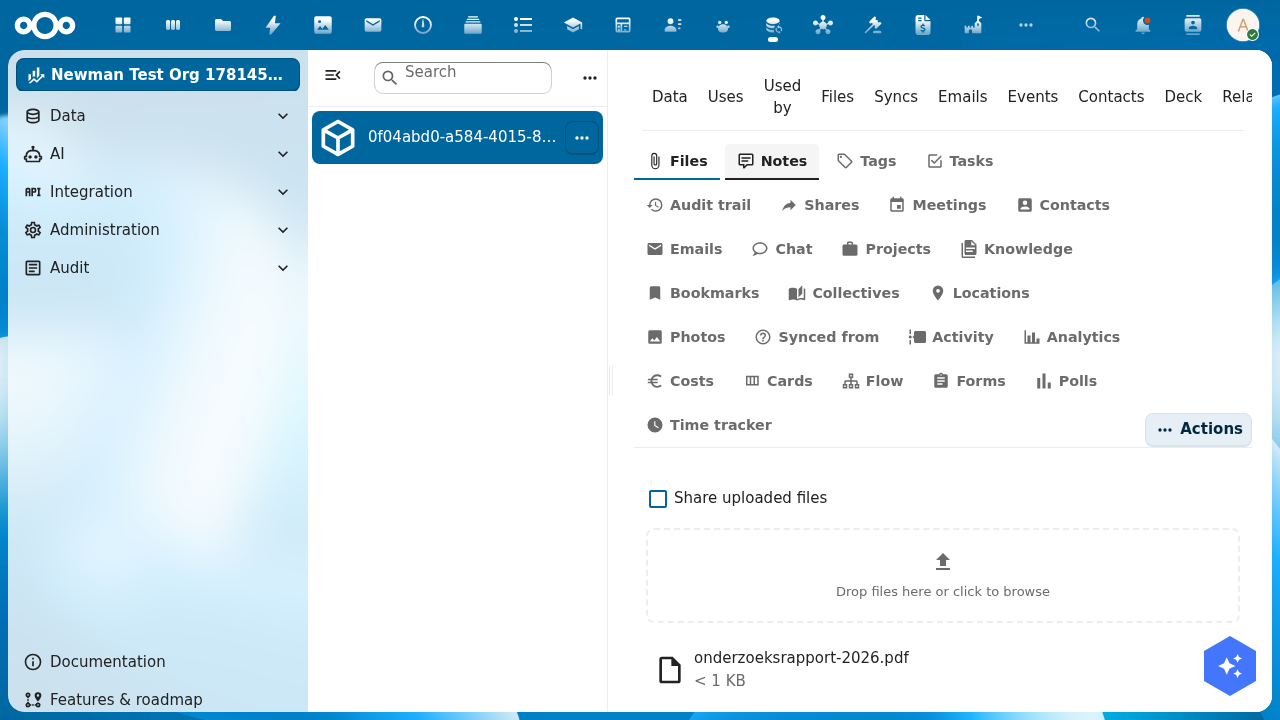
To attach more than one document, drop several files at once. Each one gets its own row.
Step 3: Choose what is public
The Share uploaded files toggle decides whether files become public the moment you upload them. Turn it on for documents that may be released right away. Leave it off for attachments that need redaction first, then publish them later.
Each file row has an Actions menu to Open the file or Delete it. To publish or unpublish a file after upload, use the files API in the appendix: publishing gives the file a public share link, unpublishing revokes it.
Step 4: List, download, and remove
The Files tab is also where you manage what is there:
- Download a file from its Actions menu, or open its public link once published.
- Delete a file from the same menu. It is removed from the object folder.
Everything you do here is reflected in Nextcloud Files under the object's folder, and the other way around.
Appendix: upload via the API
For automation (scripts, synchronisations, CI) and for files too large for a browser upload, OpenRegister exposes a files API. Files always attach to one object:
POST /index.php/apps/openregister/api/objects/{register}/{schema}/{id}/files
In the examples: host http://localhost:8080, auth admin:admin, register woo, schema onderzoeksrapporten, and an object UUID you replace with your own.
One file via JSON and base64
For small documents you generate in a script:
OBJ=your-object-uuid
B64=$(echo "Report content." | base64 -w0)

curl -u admin:admin \
  -X POST "http://localhost:8080/index.php/apps/openregister/api/objects/woo/onderzoeksrapporten/$OBJ/files" \
  -H "OCS-APIRequest: true" -H "Content-Type: application/json" \
  -d "{ \"name\": \"rapport-2026.txt\", \"content\": \"$B64\", \"share\": true }"
share: true creates a public link right away. Base64 inflates the payload by a third, so keep this for small files.
One or more binary files via multipart
For PDFs, DOCX, and images, filesMultipart avoids the base64 overhead and accepts several files in one request:
curl -u admin:admin \
  -X POST "http://localhost:8080/index.php/apps/openregister/api/objects/woo/onderzoeksrapporten/$OBJ/filesMultipart" \
  -H "OCS-APIRequest: true" \
  -F "files[]=@/path/to/attachment-1.pdf" \
  -F "files[]=@/path/to/attachment-2.pdf" \
  -F "share=true"
The total of all files in one request must stay under PHP's post_max_size (usually 100 MB).
Large files in chunks via WebDAV
For files above the upload limit, use Nextcloud's chunked upload protocol, the same one the desktop app uses. Create a transfer folder, send the file in chunks, then assemble it into the object folder:
TRANSFER_ID="woo-chunked-$(date +%s)"
DAV="http://localhost:8080/remote.php/dav"

curl -u admin:admin -X MKCOL "$DAV/uploads/admin/$TRANSFER_ID"
split -b 10M /path/to/large-report.pdf /tmp/chunk-
i=1; for c in /tmp/chunk-*; do
  curl -u admin:admin -X PUT --data-binary "@$c" \
    "$DAV/uploads/admin/$TRANSFER_ID/$(printf %05d $i)"; i=$((i+1)); done

DEST="$DAV/files/admin/Open%20Registers/Woo/$OBJ/large-report.pdf"
curl -u admin:admin -X MOVE "$DAV/uploads/admin/$TRANSFER_ID/.file" \
  -H "Destination: $DEST" \
  -H "OC-Total-Length: $(wc -c < /path/to/large-report.pdf)"
OpenRegister picks the file up automatically once it lands in the object folder. Chunks must go to the uploading user's folder; for a service account, upload as that account.
Publish and manage via the API
| Action | Method | URL |
|---|---|---|
| Publish a file | POST | /api/objects/{register}/{schema}/{id}/files/{fileId}/publish |
| Unpublish a file | POST | /api/objects/{register}/{schema}/{id}/files/{fileId}/depublish |
| List files | GET | /api/objects/{register}/{schema}/{id}/files |
| Download all as zip | GET | /api/objects/{register}/{schema}/{id}/files/download |
| Delete a file | DELETE | /api/objects/{register}/{schema}/{id}/files/{fileId} |
Troubleshooting
The upload fails with 'file exceeds upload_max_filesize'The file is larger than PHP allows for a direct upload. Raise upload_max_filesize and post_max_size in php.ini, or use the chunked upload in the appendix.
A file uploaded via the API does not appear after a MOVECheck that the Destination points to Open Registers/{Register Title}/{Object UUID}/ and that the UUID matches an existing object. OpenRegister scans only that folder.
A published file gets no public linkCheck that share links are enabled under Settings → Sharing → "Allow apps to use the share API". Without it, publications cannot get a public link.
Next step
Your publication now has documents. A few logical next steps: